Set it up
- Choose your coin and options in the builder, then press Copy address.
- In OBS Studio, press + under Sources and choose Browser. In Streamlabs Desktop it is Browser Source.
- Paste the address into URL. Set Width to 1920 and Height to 1080.
- If you turned the sound on, tick Control audio via OBS, so the battlefield gets a fader of its own in your mixer.
- Press OK, then place and scale the source in your scene like any other.
To change the coin, the candles or anything else later, open the source's properties and change the address: it is the view's remote control.
What your viewers see
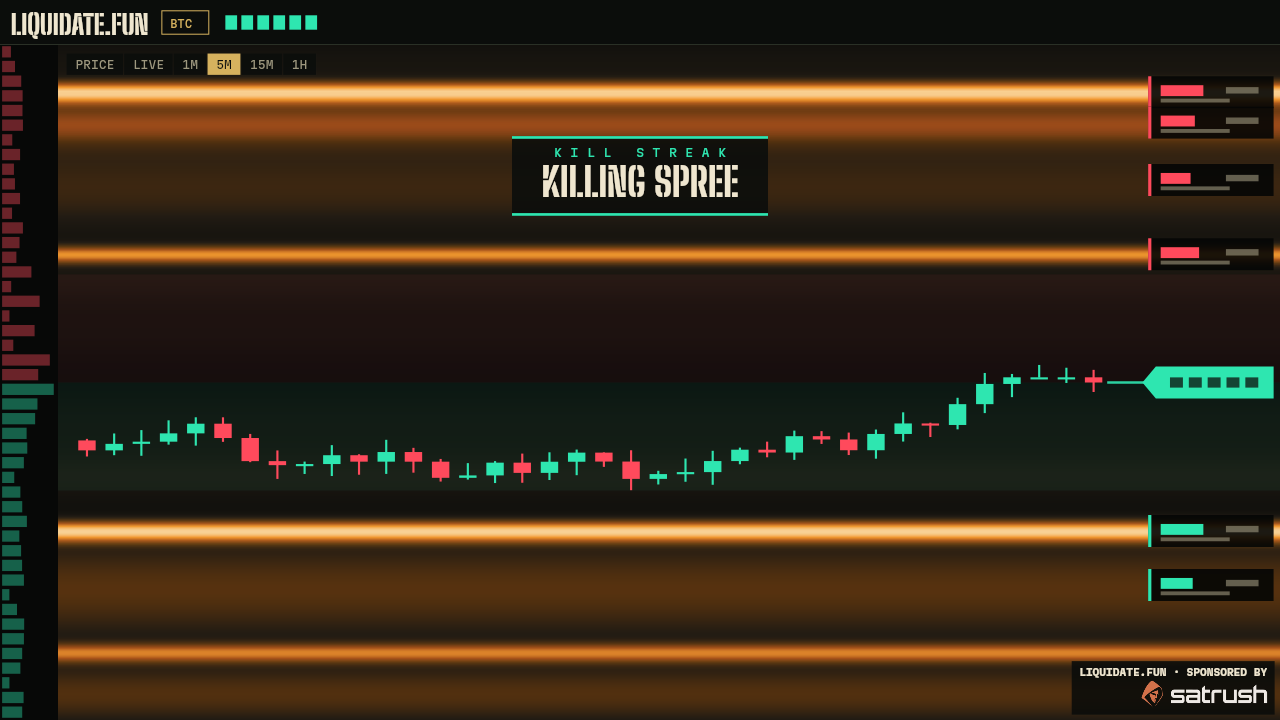
- The header: the Liquidate.Fun name, the coin and its live price.
- The Price chips show which price view is on: the live line or a candle length.
- The map. Bright bands are price levels where leverage is estimated to be stacked.
- Price, as a live line or as candles, running to its tag on the right.
- Cluster cards: the size of each cluster and how far price is from it.
- Kill streaks and big liquidations are called out as they happen.
- The mark: the site's name and its sponsor, in the map's corner.
- The resting order book, down the left edge.
The picture is a drawing; your stream shows the live market. The site's side columns, timeline and menus are left out of this view. What each thing on the map means is on the About page.
The switches
The builder writes these for you. They are listed for anyone who would rather edit the address by hand: each is added with &.
?overlay=1- Turns the streamer view on. Every stream address has it.
/eth- The coin, as the address's path:
liquidate.fun/eth?overlay=1. Bitcoin is the home address,liquidate.fun/?overlay=1.&c=ethworks too. &view=horizontal- The horizontal map: the same leverage laid along the price axis.
&candles=5m- Candles in place of the live price line:
1m,5m,15mor1h. Vertical map only. &z=5- The board zoom, in percent each side of the price: 1, 2, 3, 5, 8, 10, 12 or 15. Left out, the board uses the coin's own range and widens it to hold the candles.
&sound=1- Starts with the sound on.
&vol=0.5sets the level, from 0 to 1. &off=trades,gens- Layers to leave off:
trades,big,liqs,cards,walls,depth,gens.
Good to know
Other sizes work. The view fills whatever size you give the source. It is built for 1920 × 1080, and 1280 × 720, 2560 × 1440 and an upright 1080 × 1920 fill the same way.
One source per coin. For two coins side by side, add two browser sources with two addresses.
The coin list and the Price chips stay clickable if you use Interact on the source. A click lasts until the source loads again: then the address decides everything, as it does in a preview in your own browser, whatever you have set on the site itself.
Clips. On the site itself, the battlefield's replay has a Record clip button. Clips carry the same mark as the stream.
What the view reports. It tells the site that it is open, which coin it shows and, where OBS lets a page see it, whether you are streaming or recording. That is counted, and nothing more: there is no account, no name, and no address is kept.
If something is off
The source is empty or black. Check that the address starts with https://liquidate.fun/ and that the source has a width and a height. Then press Refresh cache of current page in the source's properties.
No sound. The address needs &sound=1. If it has it, right-click the source, choose Interact and click once inside: a browser can hold sound back until the first click. Then check the source's fader in the mixer.
It stutters. In OBS, Settings, Advanced, turn on Enable Browser Source Hardware Acceleration. Leaving layers off, the gunfire first, also gives the browser less to draw.